1. Introduction
2. Install and Uninstall
3. WinMount views
4. Compress
5. Decompress
6. Convert
7. Mount
8. Quick Mount
9. Magic page
10. Mount blank
11. FAQs
1. Command line
How to decompress 7Z?

What is 7Z?
7z is a compressed archive file format that supports several different data compression, encryption and pre-processing filters. The 7z format initially appeared as implemented by the 7-Zip archiver. Both the 7-Zip program and a library to read the 7z file format are publicly available under the terms of the GNU Lesser General Public License.
WinMount can compress, decompress and browse 7Z. Here shows you 2 ways to decompress 7Z.
1. Using browser mode
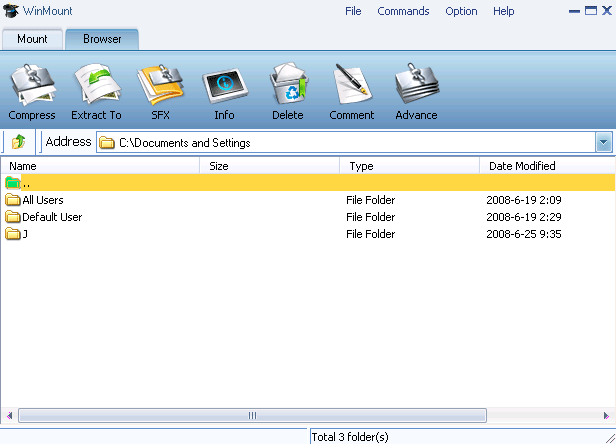
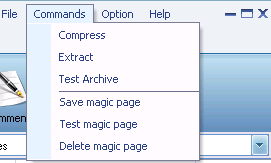
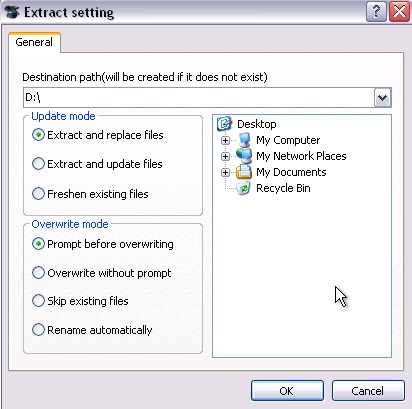
1) Select "Option -> Browser" on the WinMount main Menu;

2. Using right-click menu
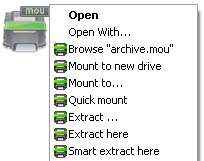
Right-click a 7Z archive, choose "WinMount3 -> extract".
. Extract to... : Extract to a selected directory.
. Extract here: Extract file to the current path.
. Extract to "Filename\": Extract file to a folder named "Filename" in the current path.
. Smart extract here: Extract file to a folder If there are several files inside. Extract file to current path if there is only a single file inside.
FAQ:
1. How to decompress RAR?
2. How to decompress ZIP?
3. How to decompress 7Z?
4. How to decompress WIM?
5. How to decompress ISO?
6. How to decompress MOU?